
Getting Started
Everything you need to go from zero to running Cambridge 0478 pseudocode — in one short guide.
1. Install Visual Studio Code Editor
Section titled “1. Install Visual Studio Code Editor”The IGCSE 0478 & A Level 9618 Toolkit is built as a Visual Studio Code extension. Visual Studio Code is the world’s most widely used code editor, available on Windows, macOS, and Linux by millions of coders.
Download & install Visual Studio Code from https://code.visualstudio.com/
2. Install Our Toolkit Extension
Section titled “2. Install Our Toolkit Extension”-
Open Visual Studio Code application on your computer.
-
In VS Code, open the
Extensionspanel (one of these methods):- Click on
extensionsicon in the left icon sidebar, OR - Press
Ctrl + Shift + X(Windows/Linux) ORCmd + Shift + X(macOS) on your keyboard, OR - Run this in the Visual Studio Code Command Palette (
Ctrl + Shift + P):, ORext install igcse-0478-and-a-level-9618-toolkit - On the top menu bar click on
View > Open View- Search box pops up
- Type
Extensionsand pressEnter
- Click on
-
In the
Search Extensions in Marketplacebox search- Search for
IGCSE 0478 & A Level 9618 Toolkit - Click on
IGCSE 0478 & A Level 9618 Toolkitin the list of extensions. - Click on
Installin theIGCSE 0478 & A Level 9618 Toolkitextension page. - Wait for the installation to complete.
- Search for
3. Get Your License Key
Section titled “3. Get Your License Key”a) Buy The Extension
Section titled “a) Buy The Extension”The IGCSE 0478 & A Level 9618 Toolkit is available as a paid extension. Pro features include
Pro features include:
- Pseudocode syntax check & highlighting
- Pseudocode snippets & IntelliSense
- Run Pseudocode
- Flowchart generation
- Trace table generation
- Pseudocode debugger
- Logic circuit simulator, truth tables and expression simplifier
- SQL “SELECT” query visualizer
You can purchase the extension on igcse0478.com. Click on the “Purchase Pro Mastery” button on the pricing table and follow the checkout process.
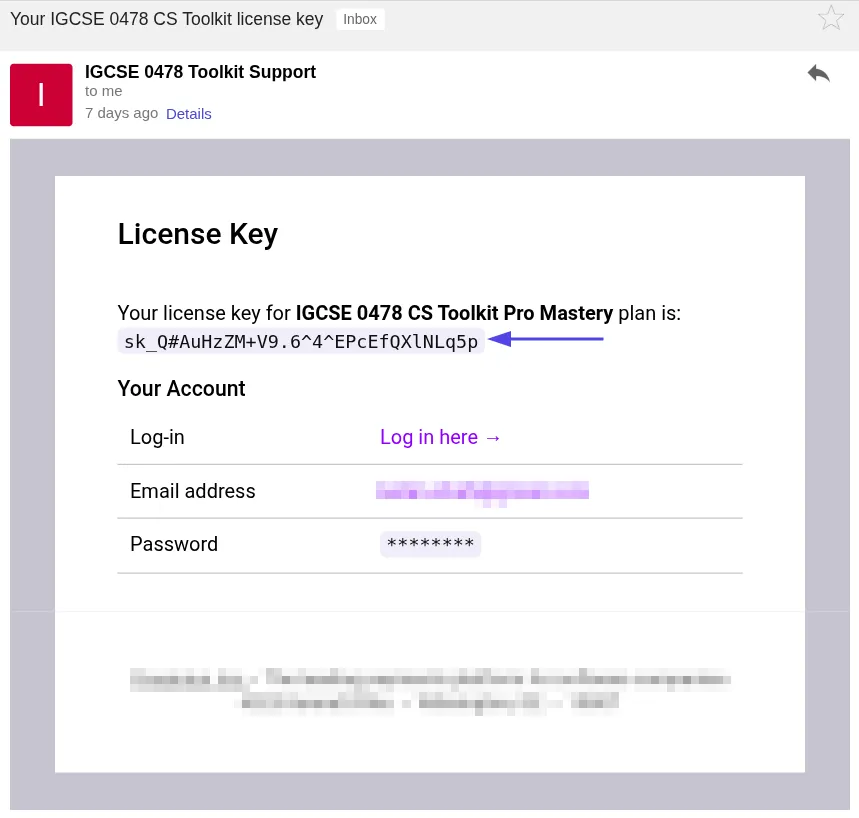
Once you make the payment, you’ll receive a license key via email - like so
b) Activate The Extension
Section titled “b) Activate The Extension”To activate the extension, follow these steps:
- Open Visual Studio Code and press
Ctrl + Shift + P(orCmd + Shift + Pon macOS) to open the Command Palette. - Search for License Manager and select the item
IGCSE 0478 & A Level 9618 Toolkit: License Manager. - Paste the license key from your purchase confirmation email and press Enter.
- You’ll see a confirmation notification — all Pro features are now unlocked.
Write Your First Pseudocode Program
Section titled “Write Your First Pseudocode Program”Create a new file called hello.pseudo and type:
DECLARE Name : STRINGOUTPUT "What is your name?"INPUT NameOUTPUT "Hello, ", Name, "! Welcome to Paper 2."You’ll immediately notice:
- Syntax highlighting — keywords like
DECLARE,OUTPUT, andINPUTare colour-coded. - IntelliSense — start typing a keyword and the extension suggests completions.
- Real-time linting — if you make a typo or forget a type declaration, errors appear instantly in the editor.
Run Your Program
Section titled “Run Your Program”Press Ctrl + Shift + P (or Cmd + Shift + P on macOS) and search for:
IGCSE: Run PseudocodeYour program executes in the integrated terminal. You’ll be prompted to type your name, and the output appears immediately — just like it would in a real exam scenario.
Explore the Core Features
Section titled “Explore the Core Features”Syntax Highlighting & Snippets (Free)
Section titled “Syntax Highlighting & Snippets (Free)”The extension ships with dozens of ready-made code snippets for common exam patterns. Type for, while, array, or case and press Tab to expand a full template.
Real-Time Error Detection (Free)
Section titled “Real-Time Error Detection (Free)”Syntax and naming errors are caught before you run. The linter enforces Cambridge’s exact conventions — PascalCase for identifiers, correct type declarations, and proper control-flow structure.
Run & Execute (Free)
Section titled “Run & Execute (Free)”Execute pseudocode programs with full INPUT/OUTPUT support. Test your logic interactively in the terminal.
Step-Through Debugger (Pro)
Section titled “Step-Through Debugger (Pro)”Set breakpoints and step through your pseudocode line-by-line. Watch variable values change in real time — the same skill you’ll need for trace table questions on the exam.
Flowchart Generation (Pro)
Section titled “Flowchart Generation (Pro)”Automatically generate a visual flowchart from your pseudocode. This is invaluable for understanding program flow and identifying structural issues before writing anything on paper.
Trace Table Engine (Pro)
Section titled “Trace Table Engine (Pro)”Auto-generate trace tables that show variable changes at each step — formatted exactly how the Cambridge mark scheme expects them.
Logic Circuit Simulator (Pro)
Section titled “Logic Circuit Simulator (Pro)”Draw and simulate logic circuits with AND, OR, NOT, NAND, NOR, and XOR gates. Generate truth tables and Karnaugh maps automatically.
SQL Execution Visualizer (Pro)
Section titled “SQL Execution Visualizer (Pro)”Write SQL queries and see a visual breakdown of how SELECT, JOIN, and WHERE clauses are processed step by step.
Try the Debugger
Section titled “Try the Debugger”Create a file called countdown.pseudo:
DECLARE Counter : INTEGERCounter ← 10
WHILE Counter > 0    OUTPUT Counter    Counter ← Counter - 1ENDWHILE
OUTPUT "Liftoff!"
Open the Command Palette and run:
IGCSE: Debug PseudocodeClick the gutter (left of the line numbers) to set a breakpoint, then use the debug toolbar to step through each iteration. Watch Counter decrement in the variables panel — this is exactly how trace table questions work.
What’s Next?
Section titled “What’s Next?”You’re all set. Here are some suggested next steps:
- Practice exam-style problems — Create
.pseudofiles for past paper questions and run them to verify your logic. - Use
.ptestfiles — Write test cases that automatically validate your pseudocode output against expected results. - Explore Logic Gates — Create
.logicfiles to build and simulate circuits for Paper 2’s logic gate questions. - Try SQL queries — Use the SQL visualizer to master the database section of the exam.